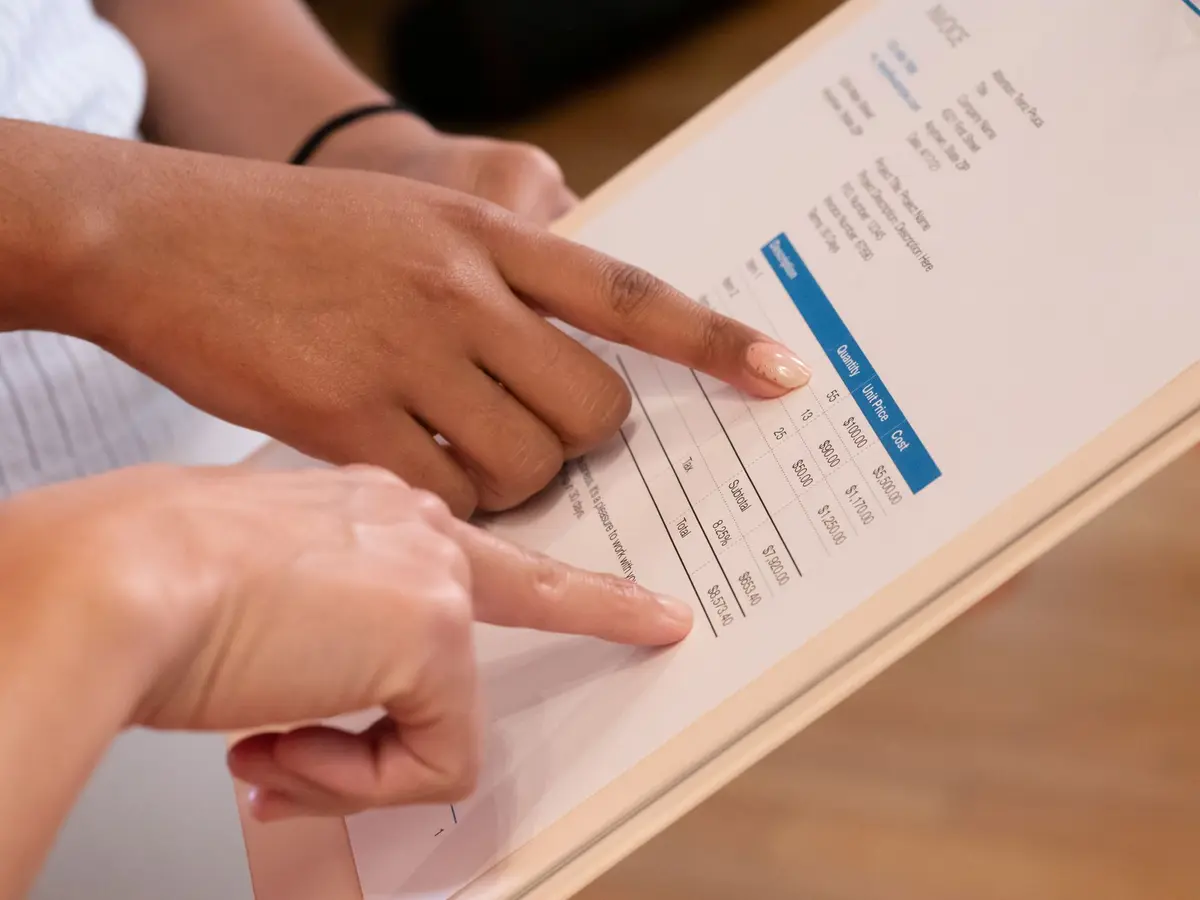
Automate Expense Reports: Receipt Capture to Accounting Sync

Manual expense report processing costs businesses £58 per report and takes 20 minutes to handle. A typical team with 50 employees filing monthly claims spends 150+ hours on administration alone. Automation cuts this by 80%—capturing receipts via OCR, categorizing automatically, routing approvals by policy rules, and syncing directly to accounting software. Finance teams reclaim 4–13 hours weekly while error rates fall from 19% to near zero. This guide walks through receipt capture tools, policy enforcement workflow, approval routing, accounting integration, and what breaks without preventive controls.
In short
- Manual expense processing costs £58 per report and takes 20 minutes; automation cuts this to 2 minutes with error rates dropping from 19% to less than 1%.
- Receipt OCR APIs (Veryfi, Taggun, Klippa, Asprise) extract merchant, date, amount, and line items with 95–99% accuracy; AI categorisation and policy rules flag violations at submission, not weeks later.
- Approval workflows route expenses automatically by amount, department, or project; notifications and escalation rules keep reimbursement cycles to 3–5 days instead of 2–6 weeks.
- Validation layers (duplicate detection, sanity checks, outlier flagging) catch errors before they hit accounting software; accounting sync via API removes manual re-entry and reconciliation friction.
- Setup takes 4–8 weeks and 200–400 hours of staff time; break-even occurs within 3–6 months on labour savings alone.
The Real Cost of Manual Expense Processing
A single expense report costs an average of £58 to process manually, and one in five contains an error that costs another £52 to correct. For a 50-person company processing one report per employee per month, that is 600 reports per year at a base cost of £34,800 in processing labour alone. Add error corrections at 20% rejection rate (120 reports × £52), and the hidden cost hits £40,000 annually. That is before accounting for reimbursement delays, audit exposure, and the morale hit when employees wait 3–6 weeks for reimbursement.
The time drain is equally severe. Processing a single report manually takes 15–30 minutes when you account for chasing documentation, verifying amounts, checking policy compliance, and entering data into a finance system. For a 50-person team, that translates to 150+ hours per month—equivalent to one full-time employee doing nothing but data entry.
Beyond labour cost, manual processes create invisible risks. Duplicate claims slip through. Exchange rate conversions get rounded incorrectly. Policy violations go unnoticed until an auditor flags them weeks later. Employees lose trust when reimbursements drag, and finance teams lose confidence in their own numbers.
Manual vs. Automated: The Side-by-Side Comparison
| Step | Manual Process | Automated Process |
|---|---|---|
| Receipt Capture | Employee photographs receipt or downloads email attachment; saves locally with unclear naming; easily lost. | Employee snaps receipt via app, email, or WhatsApp Business API; OCR extracts merchant, date, total, tax, line items in seconds. |
| Categorization | Finance person manually reviews each receipt and types category code into spreadsheet; 3–5 minutes per receipt; frequent errors. | AI matches receipt data to policy categories; system suggests category; AI flags edge cases. Instant and 95%+ accurate. |
| Policy Check | Manager or finance staff manually compares each line item against policy rules (e.g., hotel £120/night max, meals £50/day max). Violations caught after approval or reimbursement already issued. | Automated rules flag violations at submission. Policy breaches trigger immediate escalation; employee gets instant feedback; no out-of-policy spend leaves the system. |
| Approval Routing | Employee forwards email chain to manager; manager may not see it for days; follow-ups sent via Slack, WhatsApp, or informal channels; approval trail unclear. | Report routes automatically to correct approver (by amount, department, or project). System sends notification. Approver acts in-tool. Full audit trail recorded. Escalation rules trigger if no action within 2 days. |
| Accounting Sync | Finance person copies approved expense amounts into accounting software (QuickBooks, Xero, SAP) at month-end. Manual entry introduces mismatches; reconciliation takes days. | Approved expense automatically posts to general ledger with correct account code, cost center, and project tag. No manual re-entry. Real-time sync, zero reconciliation friction. |
| Time per Report | 20 minutes | 2 minutes (mostly employee confirmation) |
| Error Rate | 19% of reports contain errors | Less than 1% after manual override |
| Reimbursement Cycle | 2–6 weeks | 3–5 days |
Step-by-Step: How to Automate Expense Reports
Step 1: Choose a Receipt Capture Channel
The first bottleneck in manual systems is fragmentation. Receipts arrive via email, WhatsApp, Slack, printed paper, and voice notes. With no single input channel, tracking what has been submitted and what is pending becomes chaos.
Pick one channel to receive all receipts. Common choices:
- Email: Provide each employee or cost centre a unique inbox address (e.g., [email protected]). Set up a mail rule to auto-forward to your OCR service.
- WhatsApp Business API: Employees send receipt photos or PDF scans to a WhatsApp Business account. APIs like Veryfi, Taggun, or Mindee integrate directly; your system receives the receipt, extracts data, and stores it. WhatsApp is familiar and removes friction—employees already use it daily.
- Mobile App or Web Form: A simple app (Expensify, Navan, Ramp, or custom-built via Zapier) lets employees upload a photo. The app immediately triggers OCR and displays extracted data for confirmation.
Do not allow multiple channels initially. Once one channel is solid, add others. Fragmentation at input kills automation downstream.
Step 2: Implement OCR and Data Extraction
Optical Character Recognition (OCR) powered by AI reads receipt images and pulls out the data. Real receipt OCR APIs (not generic document scanners) are trained to recognize merchant names, dates, totals, taxes, and line items even from crumpled or low-quality photos.
Leading OCR providers include:
- Veryfi: Extracts merchant, amount, tax, line items, and currency. Integrates with WhatsApp Business API. Detects duplicates and fraud. Output is JSON, ready for downstream systems.
- Taggun: Specialises in receipt and invoice OCR. Validates calculations and flags inconsistencies (e.g., claimed total does not match line items + tax). Supports 50+ countries and currencies.
- Klippa Doxis: Line-item recognition, fraud detection, and GDPR-compliant processing. API, SDK, or no-code integration. High accuracy on complex receipts.
- Asprise: Detects multiple receipts on one scan. 2-second extraction with 99% character accuracy. Real-time library SDK for integration into your app.
- Mindee: Adapts to any layout and handwritten amounts. Handles document splitting (multiple receipts in one image). EU and US hosting options.
Most offer accuracy rates of 95–99% on character-level extraction. However, accuracy means correctly reading text—not validating that the data makes business sense. See Step 6 below for validation and error handling.
Step 3: Build a Categorization Layer
Raw OCR output (merchant name, amount, date) is not yet usable for accounting. The system must map each receipt to a ledger account, cost centre, and project code if applicable.
Approaches:
- Merchant-Based Rules: Create a lookup table: Starbucks → meals, Avis → travel, Marriott → accommodation. When OCR identifies the merchant, assign the category automatically.
- AI Classification: Large language models (LLMs) like GPT-4 can read the merchant name and receipt details and suggest a category. Prompt example: "This receipt is from [Merchant]. The amount is [Amount]. Assign one of these categories: [list]. Respond with category only." Keep a feedback loop to improve the model over time.
- Employee Confirmation: Show the employee the extracted receipt data and the AI-suggested category. Let them confirm or override. This step is fast (5 seconds) and catches edge cases (e.g., a grocery store receipt for office supplies, not meals).
Best practice: automate 80–90% of categorisation and flag the remainder for human confirmation. This balances speed and accuracy.
Step 4: Enforce Policy Rules Automatically
Policy enforcement in manual systems is reactive and inconsistent. A receipt violating the hotel policy gets approved anyway because the approver was not paying attention or did not check the policy. In automated systems, enforcement happens at submission.
Define policy rules in your system:
- Meals: maximum £50 per day, maximum £25 per meal.
- Hotels: maximum £120 per night.
- Flights: economy only unless pre-approved.
- Mileage: claims must be within company radius or pre-approved.
- Receipts: mandatory for expenses over £25.
When an employee submits an expense that violates a rule:
- Soft Block: Flag the expense and ask for a business justification (e.g., "Hotel was £135 due to conference location; please confirm").
- Hard Block: Reject the expense immediately and require resubmission with a corrected amount.
- Escalate: Send the expense to a manager for override approval rather than blocking it entirely.
This immediate feedback changes behaviour. Employees think twice about out-of-policy spending when they get instant feedback, not three weeks later.
Step 5: Set Up Approval Routing Workflows
Approval workflows define who reviews each expense and in what order. Routing rules should be based on amount, department, project, or employee level.
Example routing logic:
- Expenses under £50: Auto-approve if policy compliant.
- Expenses £50–500: Route to employee's direct manager.
- Expenses £500–2,000: Route to department head after manager approval.
- Expenses over £2,000: Route to CFO after department head approval.
- Expenses flagged for policy violation: Route to manager with a note explaining the breach.
Tools to implement this workflow:
- Zapier or Make (formerly Integromat): Connect your OCR output (receipt data) to your approval system. Use conditional logic (if amount > 500, then route to department head).
- n8n: Open-source workflow automation. Parse receipt data from email or WhatsApp, run policy checks, and route to Slack, email, or a database. Full customisation, no per-transaction fee.
- Native Approval Tools: Expense platforms like Navan, Ramp, Expensify, and Bill.com have built-in approval workflows. Configure once, and the system handles routing automatically.
Key requirement: Approvers must be notified immediately and given a direct action link (not buried in email). Slack notifications or SMS reminders work better than email alone.
Step 6: Sync Approved Expenses to Accounting Software
The final step is moving approved expenses into your general ledger. This must be automatic—no copying and pasting.
Integration options:
- API Direct Integration: Your expense system connects directly to QuickBooks Online, Xero, or SAP via their APIs. Approved expenses post as journal entries or expense claims with the correct account, cost centre, and description.
- CSV or Spreadsheet Export: Generate a reconciled CSV file with approved expenses and import it via your accounting software's batch upload feature. Less elegant but works if APIs are not available.
- Workflow Automation (Zapier, n8n, Make): Trigger a workflow when an expense is approved: "If expense status = approved, create a row in QuickBooks Online with Account = [from categorization], Amount = [from receipt], Description = [employee name + receipt merchant], Memo = [project code]."
The data flowing to accounting must include: transaction date, amount, description, account code, cost centre, project code, and a link back to the receipt image (for audit trail).
Step 7: Build Error Detection and Validation Logic
OCR is fast and accurate, but it is not perfect. Crumpled receipts, poor lighting, and handwritten amounts can confuse the system. Validation layers catch errors before they hit your books.
Validation checks:
- Duplicate Detection: Has this receipt (same merchant, date, amount) been submitted before in the past 30 days? Flag it.
- Sanity Checks: Is the extracted total plausible given the line items? Does the tax rate match the country of the merchant?
- Outlier Flagging: Is this expense 2× the historical average for this employee and category? Escalate to manager.
- Missing Receipts: Does the expense amount exceed the company threshold (e.g., £25) without an attached receipt? Reject and ask for documentation.
When validation fails, quarantine the expense and notify the employee or approver. Provide a clear reason and remediation steps (e.g., "Receipt total does not match line items. Please resubmit a clearer photo.").
What Breaks and How to Prevent It
OCR Accuracy Varies by Receipt Quality
OCR works best on clean, well-lit, square-on photos. Upside-down receipts, receipts photographed at an angle, and faded thermal paper trip up even advanced systems. Generic OCR (not receipt-specific) averages 64% accuracy; specialist receipt OCR reaches 95–99%.
Prevention: Set employee expectations. Provide guidelines: photograph receipts in good lighting, square-on, without glare. For high-volume or problematic receipts, consider a human-in-the-loop (HITL) verification step where 5–10% of receipts flagged for low confidence are manually reviewed before posting to accounting.
Policy Rules Become Out of Date
A policy rule hard-coded in your automation (e.g., "meals max £50") is forgotten when management decides to raise it to £60. The system continues rejecting valid expenses.
Prevention: Store policy rules in a spreadsheet or low-code tool (Airtable, Zapier logic) rather than hard-coding them into your expense system. Review policy rules quarterly and update the authoritative source immediately. Build a workflow that notifies approvers when a rule changes, so they understand the new logic.
Approval Routing Gets Clogged
Approvers do not review expenses for days or weeks. Employees do not know if their claim was approved. Reimbursement stalls.
Prevention: Set escalation rules. If an expense has not been approved within 2 days, send a reminder notification. If 3 days pass, escalate to the next level (e.g., from manager to department head) or auto-approve if it is compliant. Make it easy for approvers to act: send a notification with a direct link to approve or reject, not a PDF attachment.
Accounting Coding is Wrong or Inconsistent
The automated system categorises a consulting fee as office supplies or assigns the wrong project code. The expense hits the wrong account and throws off cost centre reporting.
Prevention: Validate accounting codes before they sync. Cross-check the extracted merchant or receipt description against your chart of accounts. If confidence is low, route to an accounting person for manual assignment before posting. Provide a feedback loop: if a user corrects a miscategorised expense, feed that correction back to your AI model so future similar receipts are categorised correctly.
Employees Stop Submitting Receipts Because the Process is Friction-Heavy
If approval is slow or policy checks too strict, employees lose trust and simply do not submit expenses. You gain zero visibility into actual spending.
Prevention: Keep the submission process as frictionless as possible. Do not require employees to fill out fields you can extract from the receipt. Provide instant feedback: "Receipt captured. Status: Under review by [manager name]." Send a notification when approved. Fast reimbursement cycles (3–5 days, not 4 weeks) reinforce the behaviour.
When NOT to Automate
Low transaction volumes: If your company processes fewer than 50 expense reports per month, automation may not yield clear ROI. The time to design policies and train staff might exceed the labour savings. However, even 50 reports per month at 20 minutes each = 16 hours—likely still worth it.
Highly manual decision-making: If most expenses require subjective judgment (e.g., consultancies where category depends on project context, not merchant), automation adds little value. You would spend as much time overriding the system as you would have spent manually reviewing.
Receipts are extremely messy or handwritten: If receipts are predominantly handwritten, water-damaged, or in non-standard formats, OCR will disappoint. Even specialist APIs struggle. In this case, prioritise receipt capture discipline (require digital receipts) before automating.
Regulatory or audit requirements force detailed categorisation: Some regulated industries (healthcare, legal) require expense records that are far more detailed and structured than typical OCR output. Automated categorisation may not meet audit standards. Hybrid models (OCR for capture, humans for categorisation) often work better here.
What It Typically Takes: Time and Resources
Setup Time: 4–8 weeks for a complete, well-integrated system. This includes:
- Policy definition and rule coding (1 week)
- Receipt capture channel setup and OCR vendor integration (1 week)
- Approval workflow design and configuration (1–2 weeks)
- Accounting software API integration or CSV export setup (1–2 weeks)
- Testing, edge case handling, and training (1 week)
Personnel: You will need:
- A finance operations person (0.5 FTE) to define policies and maintain rules.
- A technical person (0.5–1 FTE) or a workflow automation specialist to integrate tools and troubleshoot.
- Finance team input for approval workflows and accounting coding (10 hours total).
Tools and Services: Depending on your approach:
- OCR API: £100–300 per month (Veryfi, Taggun, Klippa, Asprise).
- Workflow Automation (Zapier, Make, n8n): £50–200 per month, depending on task complexity and volume.
- Expense Management Platform (if not using in-house system): £5–50 per employee per month (Navan, Ramp, Expensify).
- Staff time for setup: 200–400 hours (highly dependent on integration complexity).
Break-even typically occurs within 3–6 months on labour savings alone, before accounting for error reduction and faster reimbursement cycles.
How AiStaffo would automate this
AiStaffo designs and runs AI-driven automation that connects your receipt intake (email, WhatsApp Business API, mobile app) to your OCR and policy enforcement engine, then routes approvals automatically and syncs approved expenses directly to your accounting software (QuickBooks, Xero, SAP, or a spreadsheet). What runs automatically: receipt capture, data extraction, categorisation, policy compliance checks, approval routing, and accounting sync. What you still do: define policies, handle edge cases, and approve expenses flagged for manual review. Finance teams reclaim 8+ hours per week, employees are reimbursed in 3–5 days instead of 4 weeks, and errors drop to near zero. No more manual data entry, no more spreadsheet reconciliation, no more lost receipts. Book a free automation audit to see where your expense workflow is losing time and money.
Questions people ask
How accurate is OCR for receipts?
Can I use this system if employees submit receipts via email or WhatsApp?
What happens if the OCR misreads a receipt?
How do I integrate this with QuickBooks, Xero, or another accounting system?
What happens if a manager does not approve an expense for a week?
How long does setup take?
Book a free automation audit
Thirty minutes. We look at one process you run every week and tell you exactly what an AI worker would take off your desk, and what it would not.