AI Office Assistant for Repetitive Admin Work

An AI office assistant can automate administrative tasks that follow clear rules: sorting incoming documents, extracting information, entering it into business systems, preparing routine reports and sending follow-ups for missing paperwork. It works through the tools your business already uses, such as Gmail or Outlook, Google Drive or SharePoint, spreadsheets, a CRM or ERP, and approved messaging channels. The office assistant remains in place during setup and handles exceptions while the workflows are checked. Keep a person responsible for decisions, sensitive conversations, unusual records and final approvals. Automation is most useful when the task repeats, the required information is defined and errors can be reviewed.
In short
- Start with repeatable tasks that have clear inputs, destinations and exception rules.
- Connect only the inboxes, document stores and business systems the workflow needs.
- Keep people responsible for judgement, sensitive conversations and consequential approvals.
- Run the automation alongside the office assistant before letting it complete routine cases.
- Do not automate unclear, rare or high-consequence work without a workable review path.
What an office assistant actually does all day
The job is often less about one large project than keeping many small obligations moving. An assistant checks shared inboxes, notices what needs a reply, files documents, updates records and reminds colleagues or customers when something is missing. The exact mix depends on the business, but the recurring clerical work is familiar across many offices.
O*NET’s 2026 profile for secretaries and administrative assistants describes routine work such as drafting correspondence, scheduling appointments, organising electronic and paper files, and providing information to callers. In a business, those duties commonly translate into:
- Sorting incoming email and attachments into the right folder, team queue or person’s task list.
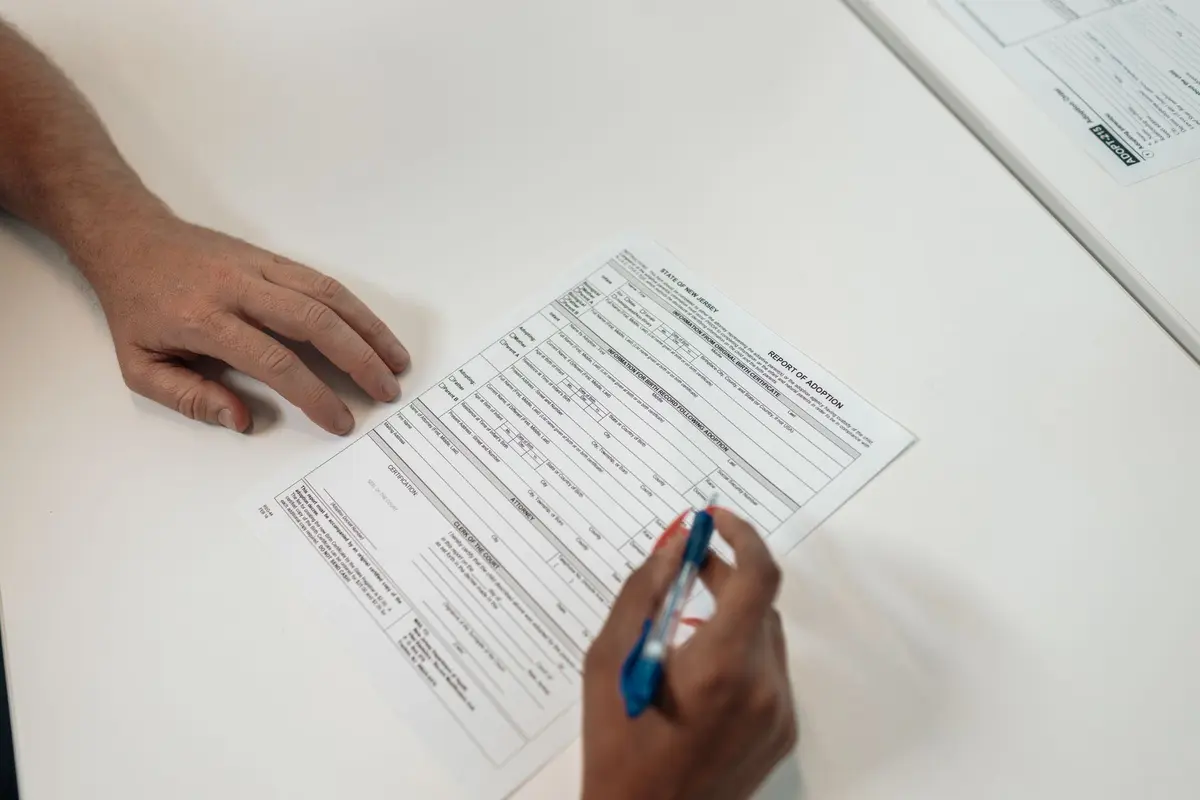
- Opening invoices, forms, purchase orders, delivery records and other paperwork, then checking whether key fields are present.
- Entering names, dates, amounts, reference numbers and status updates into a spreadsheet, CRM, ERP or accounting system.
- Matching a document to an existing customer, supplier, project or transaction.
- Following up when a form, signature, receipt, purchase order or other supporting document is missing.
- Preparing recurring summaries from spreadsheets or business-system records.
- Filing completed documents using a consistent naming convention and linking them to the relevant record.
- Passing exceptions to a manager or specialist and tracking them until someone resolves them.
These tasks feel simple individually, but they rely on dependable handoffs. A document that sits in an inbox, a field entered against the wrong account, or a follow-up that never gets sent can interrupt work elsewhere. The first step is to write down what starts each task, what information is needed, where the result goes and what counts as an exception.
Which tasks an AI worker takes over, task by task
An AI worker combines document-reading or language tools with workflow automation. It needs authorised access to the places where work arrives and the systems where it must be recorded. For example, Microsoft’s AI Builder can extract information from documents and run as part of a Power Automate flow. Microsoft describes its document automation toolkit as combining Power Automate, AI Builder, Power Apps and Dataverse, including a review and approval stage.
| Office task | What the AI worker does | What it needs |
|---|---|---|
| Sort incoming paperwork | Detects document type, reads basic details, applies agreed categories and routes the file to a folder or review queue. | A shared Outlook or Gmail inbox, approved document storage such as SharePoint or Google Drive, and written routing rules. |
| Enter information | Extracts defined fields, checks required fields and prepares or creates a matching record. | Examples of the documents, a field map, and a supported connection to the target spreadsheet, CRM or ERP. |
| Match records | Compares identifiers such as supplier, customer or reference number against existing records and flags uncertain matches. | Access to the source records and rules for handling duplicates, missing IDs and conflicting details. |
| Prepare routine reports | Collects agreed figures from a spreadsheet or business system, fills a standard report and sends it to a defined recipient or review queue. | A stable report format, authorised data access, definitions for each measure and a schedule or trigger. |
| Follow up on missing paperwork | Checks which records are incomplete, drafts or sends an approved reminder, and updates the task status. | A reliable checklist, contact details, follow-up timing, an approved message and a permitted channel such as email or an authorised WhatsApp Business Platform integration. |
| File completed work | Names, stores and links documents to the related record, then records the outcome. | Folder conventions, record identifiers, retention rules and permissions to write to the relevant systems. |
Not every system offers the same integration. Microsoft 365 businesses may use Outlook, SharePoint, Excel, Power Automate and AI Builder; Google Workspace businesses may organise work in Gmail, Drive and Sheets, with an automation platform connected to those services. A business may also use Salesforce, HubSpot, SAP, Oracle NetSuite, Tally or another system of record. The practical question is whether the automation can access and update the required fields reliably, not whether a tool has “AI” in its name.
For each task, decide whether the workflow should save a draft, create a pending record or complete the update automatically. A sensible starting point is to let the worker read and classify, then ask a person to review uncertain fields or consequential entries. Once real exceptions are understood, routine cases can move through without an individual checking every step.
What stays with a person, and why
A person should stay responsible for decisions that require context, interpretation or accountability. The AI worker can prepare a case for review, but it should not decide whether a disputed invoice is valid, promise a delivery date, waive a missing requirement or approve a payment unless the business has explicitly designed and authorised that decision process.
People also handle relationships. A supplier who has missed paperwork repeatedly may need a conversation rather than another standard reminder. A customer may be dealing with a sensitive situation that cannot be understood from a form field. A colleague may need help deciding which request is urgent. These interactions depend on context and trust, not just matching text to a template.
Keep human sign-off for financial approvals, changes to important records, unusual cases and regulated decisions. The exact boundary depends on the work and the rules that apply in each country and sector. For instance, identity, health, employment and financial documents can involve additional privacy, access, retention or compliance obligations. Set the permissions and review path with the people responsible for those obligations; do not treat a successful data extraction as permission to make a regulated decision.
There is another limit: an automation cannot fix unclear procedures. If two colleagues classify the same document differently, or the business has no agreed answer for incomplete forms, an AI worker will reproduce the uncertainty at speed. Standardise the process and escalation rules before expecting reliable automation.
How the role differs by business type
The same basic workflow appears in different settings, but the documents and consequences change. The examples below describe possible uses, not a promise that a particular system or document can be automated without configuration.
| Business type | What the office assistant does there that is specific | What the AI worker handles there |
|---|---|---|
| Professional services firm | Organises client onboarding forms, engagement documents, timesheets and project correspondence. | Sorts incoming files, checks for listed onboarding fields, links documents to client records and flags missing items. |
| Wholesale or distribution business | Handles supplier paperwork, customer orders, delivery records and account updates. | Reads defined order or delivery details, matches references to system records and routes mismatches for review. |
| Construction or field-services company | Collects job sheets, supplier invoices, site documents and completion paperwork from office and field teams. | Files incoming documents by job reference, extracts agreed fields and identifies records with missing attachments. |
| Property management business | Maintains tenant, property and maintenance records, and follows up on forms and supporting documents. | Routes incoming paperwork to the correct property or case and sends approved reminders about missing information. |
| Education provider | Organises enrolment forms, attendance-related records, schedules and routine notices. | Classifies submissions, checks required fields and prepares a list of incomplete files for authorised staff. |
| Healthcare practice | Coordinates appointments and records, and handles administrative documents under the practice’s procedures. | Sorts and routes administrative paperwork, flags missing fields and prepares a review queue without making clinical decisions. |
In any sector, keep sensitive records behind role-based permissions and restrict the automation to the minimum access it needs. Agree where files are stored, how long they are retained and who can see exceptions before the workflow goes live.
How the switch happens
The assistant should remain in place at first. Their knowledge of the work is essential: they know which inbox matters, which supplier uses a different form, and when a short email needs a personal response. Use that practical knowledge to define the workflow before transferring routine steps.
- Week one: map the work. Choose one recurring process, such as sorting supplier documents and identifying missing fields. Record its trigger, current steps, destination system, required fields, exceptions and approval owner. Check that the team agrees on what “complete” means.
- Week two: configure and test. Connect only the necessary inbox, storage location and business system. Use sample documents and test records. Compare what the worker extracts and where it routes each item with what the assistant would do. Correct field mappings and routing rules before using live records.
- Week three: run alongside the person. Let the worker process a controlled flow while the assistant checks results. Route uncertain matches, unreadable documents, missing information and duplicate records to the assistant. Record the reason for each exception, then adjust the workflow where the rule is clear.
- Week four: hand over routine cases gradually. If the parallel checks show the workflow is following its rules, allow it to complete the defined low-risk cases. Keep review for exceptions and consequential updates. The assistant can shift from repetitive entry to monitoring, correction and handling cases that need judgement.
Those weeks are a practical rollout sequence, not a fixed promise. A single inbox and a stable form may be straightforward to test; a process spanning several departments or older systems will require more discovery. Do not remove the human review step just because a pilot has started. First confirm that the worker has the right access, creates an audit trail and sends exceptions to an accountable person.
When the workflow is dependable, the role may move toward reviewing exceptions and keeping procedures current. That does not mean every office assistant position should disappear. The business may still need someone to manage communications, coordinate people, answer unusual requests and take responsibility for work that cannot be reduced to a repeatable rule.
Risks and when not to automate this role
Automation can move errors faster as well as move routine work faster. A document reader might misread a number; a matching rule might choose the wrong record; an email workflow might send a reminder to the wrong contact. Reduce those risks with validation rules, controlled permissions, a review queue for uncertain cases and a way to trace what the workflow changed.
Do not automate a process before its owner can explain the rules. Avoid automatic updates where a mistake would be difficult to reverse, where documents vary widely without reliable identifiers, or where exceptions are so common that every item needs human interpretation. If the work is occasional and takes little time, setting up and maintaining a workflow may not be worthwhile.
Be careful with personal and confidential information. Limit what the worker can read and write, use approved services, and check that your organisation’s privacy, retention and security requirements are met. For messaging, use an authorised business integration and follow the channel’s current policies. The WhatsApp Business Policy, for example, sets conditions for business messaging, including restrictions on how businesses initiate conversations.
Before expanding a workflow, inspect its logs and exception queue. Confirm that reports use the correct definitions, that reminders stop when paperwork arrives, and that staff know how to pause the automation. Keep an owner responsible for changing the rules when a form, system or business process changes.
Sources
How AiStaffo would automate this
AiStaffo can connect the inboxes and document stores where paperwork arrives to the spreadsheets, CRM or ERP where records belong. The AI worker can sort files, extract agreed fields, prepare routine reports and follow up on missing paperwork using approved rules. The owner or office assistant still reviews exceptions and approves decisions that carry financial, personal or regulatory consequences. Book a free automation audit
Questions people ask
What administrative tasks can an AI office assistant automate?
Can an AI office assistant enter data into my CRM or ERP?
Will an AI office assistant replace my office assistant?
Can an AI worker follow up for missing documents on WhatsApp?
When should I not automate office administration?
What does an AI office assistant need to get started?
Book a free automation audit
Thirty minutes. We look at one process you run every week and tell you exactly what an AI worker would take off your desk, and what it would not.